How to set screen time on your child's iPhone and Android, step by step
To set screen time on your child's iPhone, open Settings on your own iPhone, tap Family, tap your child's name, then tap Screen Time and follow the onscreen instructions (Family Sharing needs to be set up first). On Android, open the Family Link app, select your child, then tap Screen time: "Time limits" caps the hours per day, and "Schedules" switches the phone off in the evening and during school.
The menus are the easy part. What makes them work is setting them up together, side by side, rather than behind your child's back.
What do you need before you start?
On iPhone, Apple asks for three things: Family Sharing turned on, an Apple Account for each family member, and a Child Account for your son or daughter. Update every device in the family group too, so your settings sync. Apple recommends managing everything from the parent's device, and setting your child's Screen Time passcode on your own phone, not on theirs (Apple Support, "Use Screen Time to manage your child's iPhone or iPad").
On Android, your child needs a Google Account managed with Family Link, on a device running Android 7 or later. Limits can't be placed on the phone's system apps.
Pick your moment as well. A quiet Saturday afternoon works far better than the evening after an argument about the phone.
How do you set screen time on a child's iPhone?
With iOS 27, Apple introduced new parental controls, and devices that can't be updated keep the previous version. The menus depend on the software your family's devices are running, so check yours in Settings first.
With iOS 27 (new parental controls)
Everything starts on your iPhone: Settings, Family, then your child's name.
| What you want | Where to tap | |---|---| | Set up parental controls | Screen Time, then follow the onscreen instructions | | Set time per type of app (Entertainment, Games, Social Media) | Time Allowances, tap the Add button, then adjust each category with the slider | | Choose which apps are available at different times of day | Screen Time Schedule, turn on Schedule, then Add Schedule and pick the days | | Add a slot (an after-school club, for example) | Inside the schedule: Add Time Window |
Schedules come with built-in windows such as Before School, School and After School. Apple says the starting points for Time Allowances are age-based and that you can adjust them (Apple guide to Schedules and Time Allowances). Set up contacts and apps that are Always Allowed too, so your child can reach you whatever the limits.
With iOS 26 or earlier
Here you go to Settings, Screen Time, then your child's name below Family.
- Evenings and nights: tap Downtime, then Scheduled. Choose Every Day or Customize Days, then set the start and end times.
- So the limit actually holds: in Downtime, turn on Block at Downtime. Without it, Apple notes that limits can be ignored once they're reached. This option needs a Screen Time passcode.
- Time per app or category: tap App Limits, then Add Limit, choose a category (Games, for instance), tap Next and set the time allowed.
- What stays open: in Always Allowed, check that Messages is on the list. Otherwise, Apple warns, your child may not be able to send or receive messages during downtime.
Try lesson 1 free with my child →
How do you set screen time on Android with Family Link?
It all happens in the Family Link app on your phone. At the top left, select your child, then at the bottom left, tap Screen time.
| What you want | Where to tap in Family Link | |---|---| | A maximum amount of time per day | Time limits, turn on Daily limit, then Weekly schedule, pick a day and the amount. Apply to all days of the week, then Done | | Time for one specific app | Time limits, then App limits, choose the app, then Set limit | | Switch the phone off in the evening | Schedules, turn on Downtime | | Switch it off during lessons | Schedules, turn on School time | | Give a little extra today | Below your child's device name, Bonus time |
When the device is locked, your child can still answer phone calls and tap Emergency to make a call, if the phone has a calling plan. For them to text during Downtime, their messages app has to be set to Unlimited time (Google Family Link Help).
On their own phone (Android 8.1 or later), Settings, then "Digital Wellbeing & parental controls", shows the current settings. Changing them needs your sign-in or your Parent Access Code.
Which settings switch off the "hooks" in apps?
A time limit works on how long. It does nothing about what pulls your child back to the screen every ten minutes. Notifications and autoplay are built to bring them back, and those are the hooks you can switch off.
These settings are done on your child's phone, with them:
- Notifications on iPhone: Settings, Notifications, tap the app, then turn off Allow Notifications.
- Notifications on Android: Settings, Notifications, App notifications, tap the app and turn its notifications off. Names vary a little between phone brands.
- Autoplay on YouTube: tap the profile picture, then Settings, then Autoplay. Google says Autoplay is off by default for users aged 13 to 17, but they can turn it back on (YouTube Help).
- Evenings on Android: Settings, Digital Wellbeing, Bedtime mode, then Bedtime routine.
Sort through them together. Ask which notification interrupts homework the most, and let your child decide which ones stay. A message from Grandma doesn't carry the same weight as a game alert.
Why set up the phone with your child rather than behind their back?
In my sessions, parents often tell me the same story: parental controls work for a few weeks, then the child finds a gap, or spends their time bargaining for extra minutes. My view is simple. A setting imposed in secret becomes an opponent. A setting your child chose becomes theirs.
Once your child understands why a notification keeps calling them back, switching it off is no longer a punishment. It's their decision. They stick to a limit they helped set, and they find it easier to tell you when it isn't working.
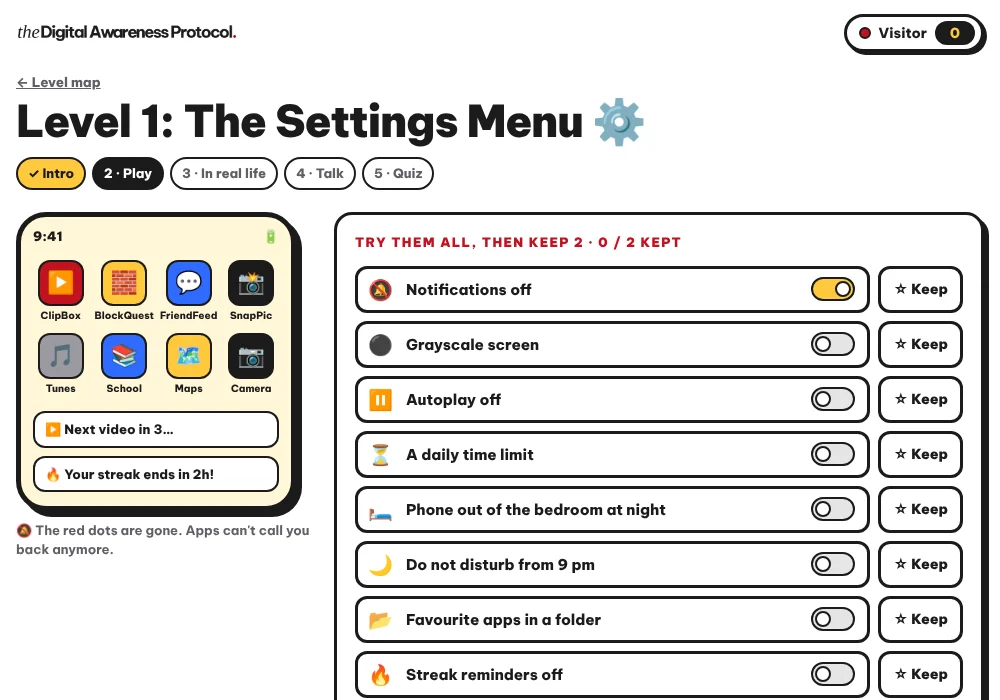
That is exactly what Workshop 6 of My Digital Awareness, "The Settings Menu", does. On a pretend phone, your child tries the settings that switch hooks off and decides what to change. You can see the whole programme on the My Digital Awareness home page.
After that, keep a short weekly check-in, in the car on the way to school or after dinner: look at the time spent together, without judging, and adjust. More practical guides are on the My Digital Awareness blog.
FAQ
Can my child get around Screen Time limits?
On iOS 26 and earlier, limits can be ignored by default once they're reached: turn on Block at Downtime and create the Screen Time passcode on your own device. In my view, the strongest protection is a rule your child agreed to, because it gives them less reason to look for a gap.
Will my child still be able to call me when the phone is locked?
On Android with Family Link, they can answer calls and tap Emergency. On iPhone, add your contacts and Messages to Always Allowed so your child can reach you during downtime.
How much screen time per day should I set?
In iOS 27, Apple offers age-based starting points in Time Allowances, which you can change. Start there, ask your child what they would suggest, and review the number together after a few weeks.
Digital Wellbeing or Family Link: which one should I use?
Digital Wellbeing helps anyone manage their own phone, with app timers and Bedtime mode. Family Link lets a parent set and lock the limits on their child's account.
Let them choose their own settings: more than 20 games to understand how apps capture their attention.Try lesson 1 free with my child →

Kawthar Bouachrine is a family therapist and NLP practitioner since 2014, a certified DISC and Driving Forces practitioner (Erudia · Assessments24x7), creator of My Digital Awareness, a programme by The Parenting Protocol™, and founder of Koding Kids, an online coding school for children.